
The Teachers Service Commission (TSC) online payslip portal makes it easy for teachers across Kenya to view, download, and even print their payslips anytime, anywhere.
In this guide, we will walk you step-by-step through how to check and download your TSC payslip online, plus offer helpful tips in case you run into any issues during the process.
Step 1: Register (If You’re a First-Time User)
Go to the TSC official website: https://www.tsc.go.ke
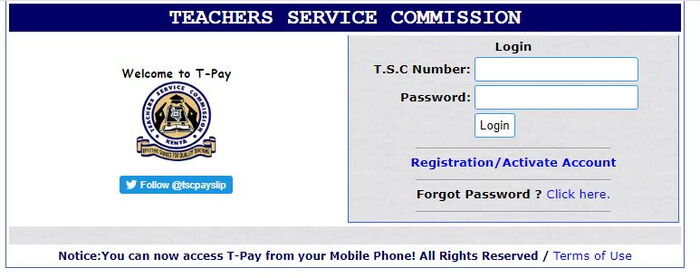
On the site, find the registration or activation link (often labelled “Registration/Activate Account”).
You’ll need to fill in:
- Your TSC Number
- Your full names (make sure you use correct upper/lower case — e.g., “Moses Njuguna Omondi”)
- Your ID number
- KRA Tax PIN
- Date of birth
- Designation code
- Pay station code
- Bank account number
- Mobile phone number
- Personal email address
N/B : providing false information may result in de-registration.
Step 2: Logging In- After registration, visit the payslip login page: https://payslip.tsc.go.ke/login.php
(or use the login interface via the online services tab on the TSC website).
Enter your username (usually your TSC number) and your password.
If you have forgotten your password, use the “Forgot Password” option — fill in the required form to reset.
READ ALSO: TSC Online Transfer System Streamlines Teacher Transfers
Step 3: View & Download Your Payslip
Once logged in, navigate to Online Services → Online Payslips (or a similar menu) from the dashboard.
Choose the menu item such as “View Payslip”, which will allow you to see your payslip details.
On the TSC payslip view page you’ll find:
- Month and year of the pay period
- Your TSC number, name, teaching station
- Job group/grade, whether you are permanent/contract, pensionable status
- Bank or SACCO through which salary is remitted (PayPoint)
- Basic salary, allowances (house, hardship, commute, etc)
- Deductions (loans, insurance, medical, PAYE, NHIF, etc)
- Net pay (after deductions)
To download: Use the download button (often PDF) or print if you need a hard copy.
Step 4: After you’re done, always log out of your account once you’ve finished, especially if you used a public or shared computer. This protects you against exposing your personal details to fraudsters.
If you face any problems (e.g., invalid names during registration, login errors) you can contact TSC support via email: [email protected]